
 By Binh
 What is GitLab Package Registry
The GitLab Package Registry acts as a private or public registry for a variety of common package managers. You can publish and share packages, which can be easily consumed as a dependency in downstream projects.
Difficulty?
How to publish a private or public PHP project to the GitLab Package Registry as a composer package so that we can install it via command composer install or composer require?
Below are some steps that could help you publish a private or public PHP project as a composer package by using CI/CD to the GitLab Package Registry.
Step 1 – Getting started
I have created a project called test-publish-composer. If you don’t have one, let’s create a project by yourself either from your local machine with git command or on Web UI on GitLab. I’ll show you create a repository on Web UI.
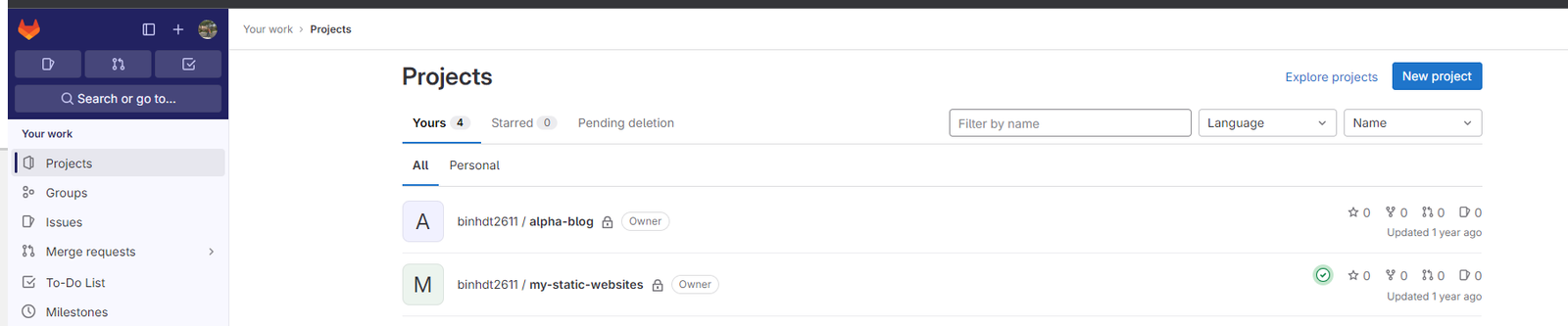
- On Gitlab Console -> select Projects on the left navigation column -> select New project
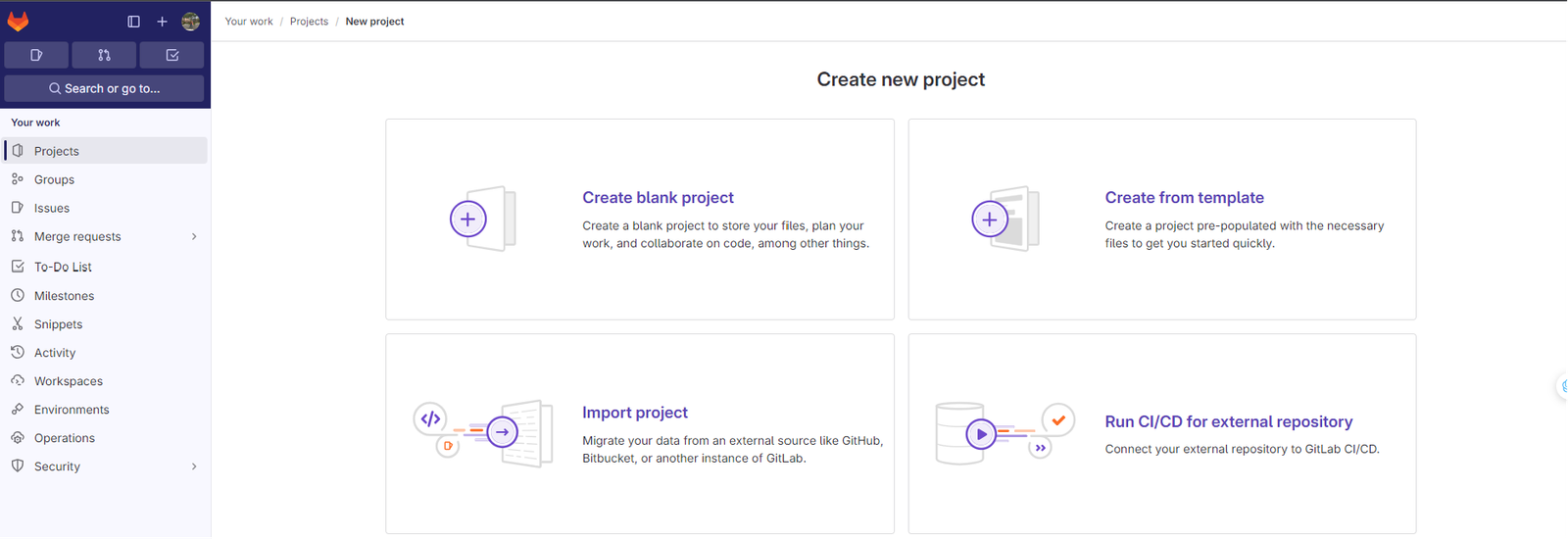
- A new tab will be showing -> select Create blank project
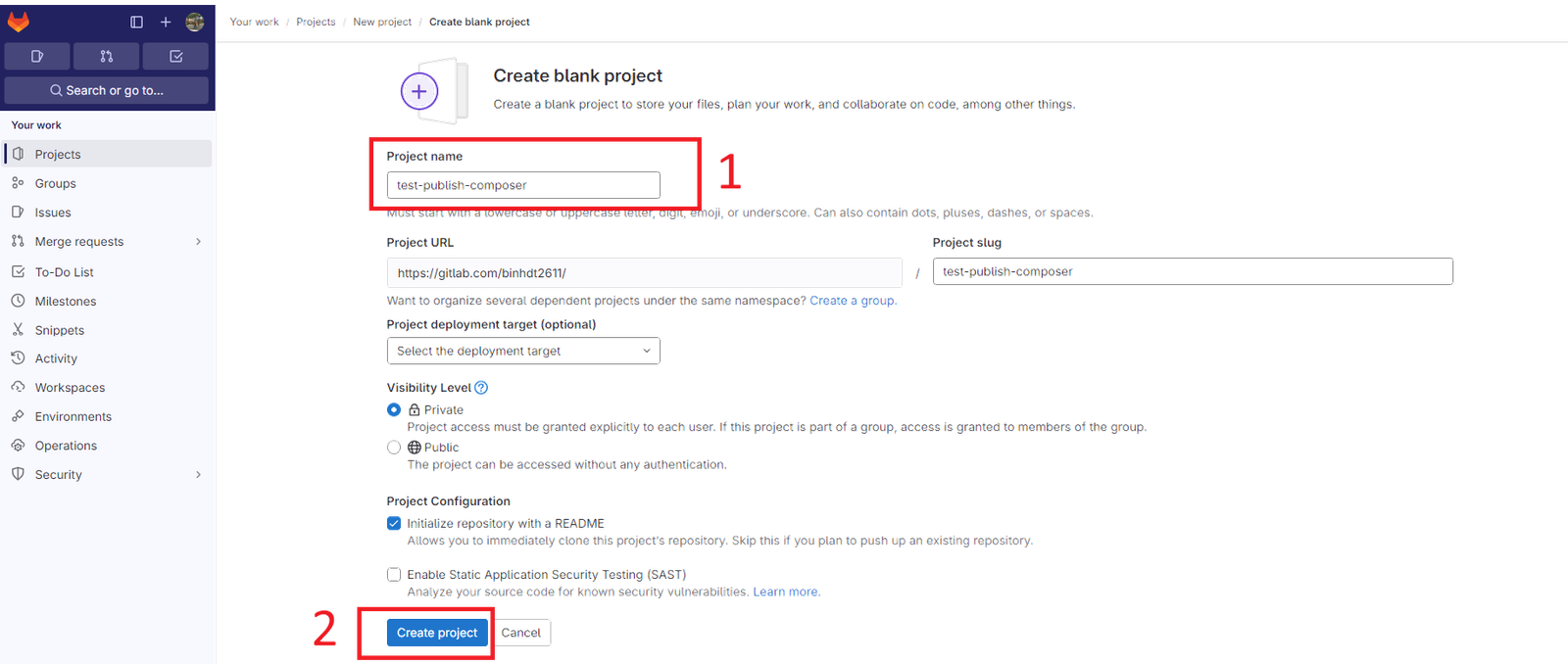
- Then enter your project name -> click Create project. I created
test-publish-composerproject
Step 2 – Create a project deploy token
Next, you’ll need to create a token that will be used in the CI/CD job. It allows the CI to be able to read and write the package registry. GitLab has 4 types of tokens, click here to know the details. I’ll be using “Project deploy token” in this blog.
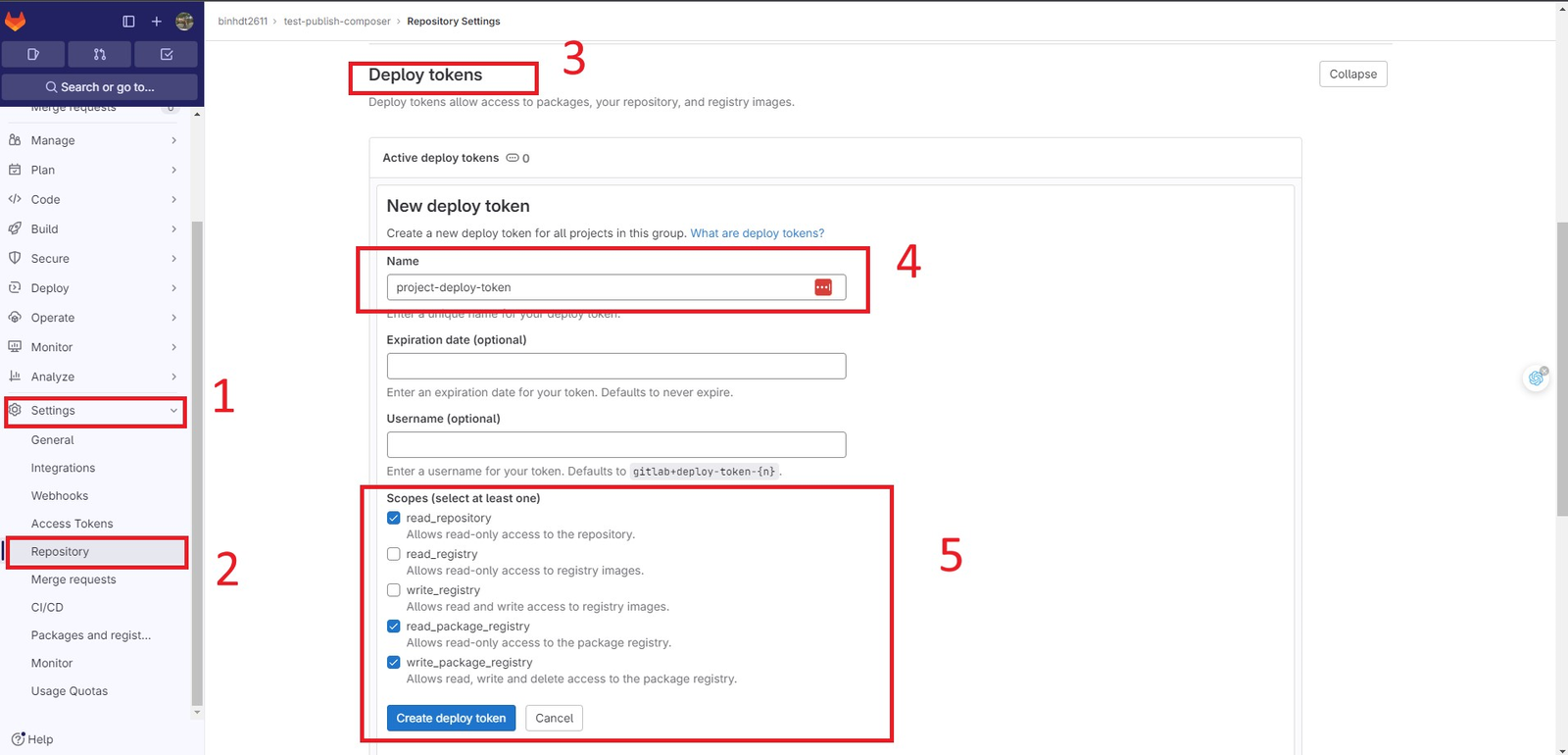
- After clicking Create project, you’ll see your project created. On the left navigation tree, select Settings -> select Repository -> then find Deploy tokens section -> enter your token name (anything you want) -> select appropriate scopes, we just need 3 scopes as the attached photo is enough. Click here to know more about creating a project deploy token.
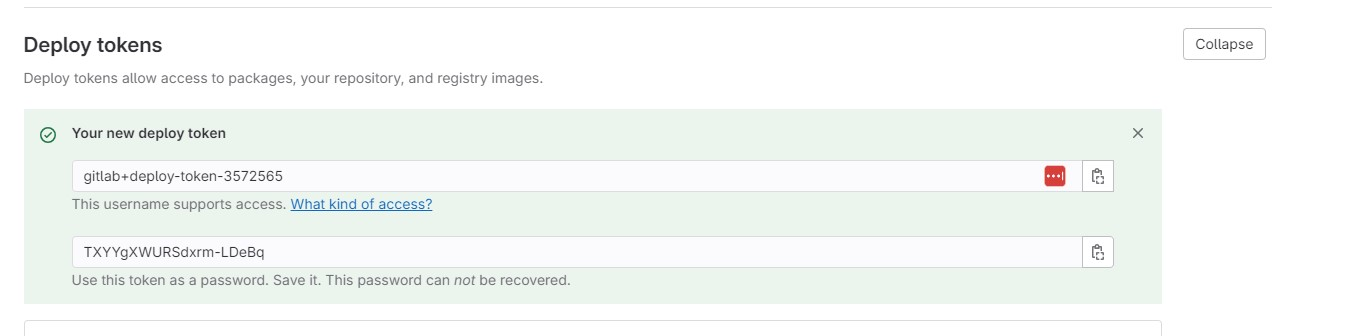
- Your created token appears then as below. Please copy and save your token in a secret place. We’ll need that later.
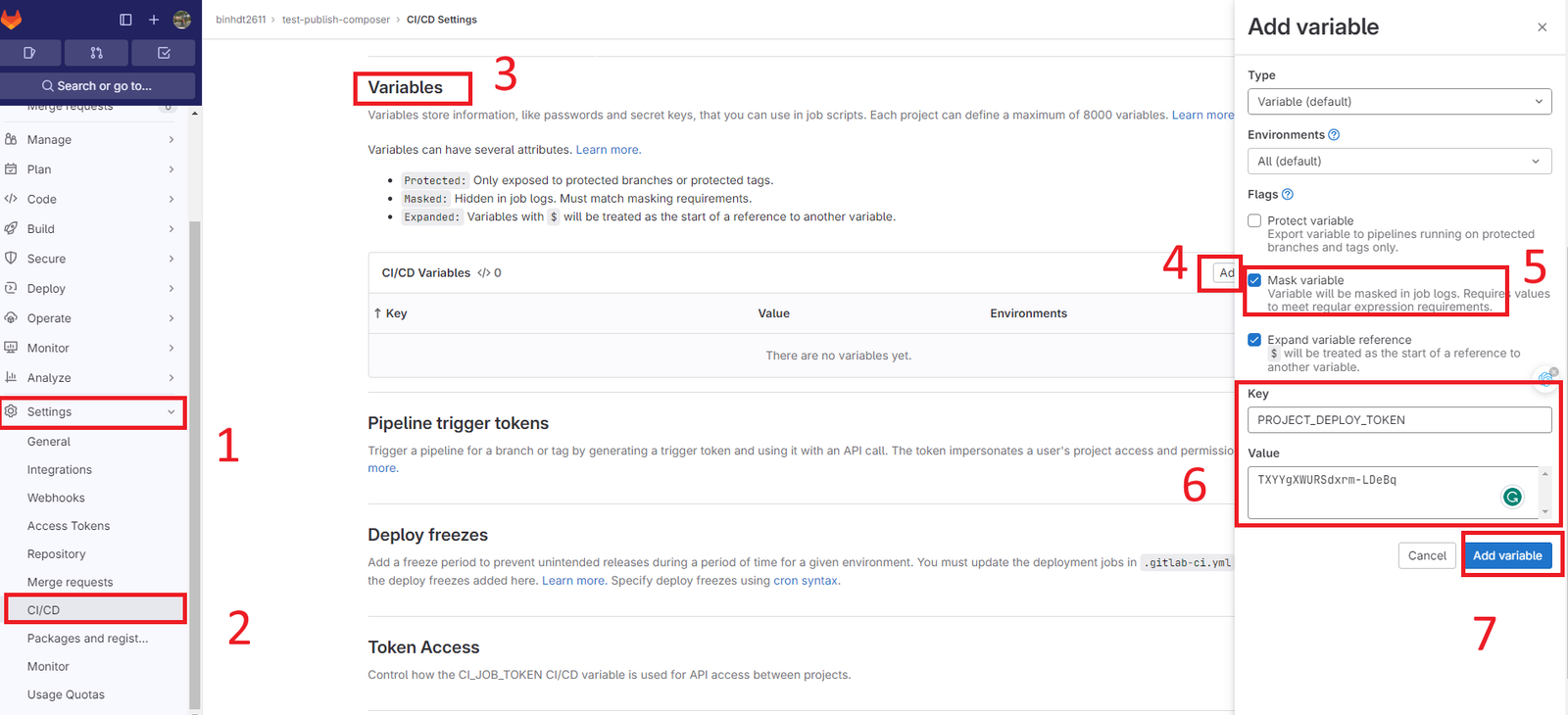
- Add your token key into CI/CD variables so that the CI jobs are able to use this token as an environment variable while running.
Go to Settings -> select CI/CD -> select Variables section -> click Add variable -> An pop up showing, untick Project variable and select Mask variable -> enter Key: <is variable name> – Value: <is your created token> (my one is TXYYgXWURSdxrm-LDeBq)
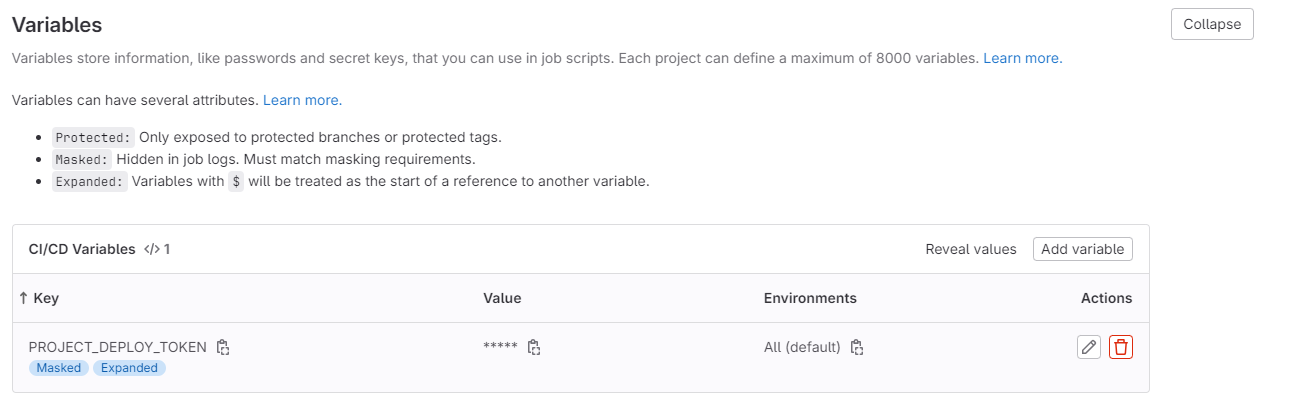
- Your CI/CD variables will be like
Step 3 – Create GitLab CI on your project
- Make sure your PHP project has
composer.jsonfile which has at least fields as below:
{
    "name": "binhdt2611/test-publish-composer",
    "description": "A test repository for publishing to the GitLab Package Registry",
    "license": "proprietary",
    "version": "1.0",
    "require": {}
}- Create a
.gitlab-ci.ymlfile under the project’s root directory
nano .gitlab-ci.ymlAnd add the content below:
stages:
  - build

publish package:
  stage: build
  image: curlimages/curl:latest
  variables:
    # You'll add your CI created variable in Step 2 - is $PROJECT_DEPLOY_TOKEN
    DEPLOY_TOKEN: $PROJECT_DEPLOY_TOKEN
  only:
  - main
  script:
    - 'response=$(curl -s -w "\n%{http_code}" --data branch=${CI_DEFAULT_BRANCH} --header "Deploy-Token: $DEPLOY_TOKEN" "${CI_API_V4_URL}/projects/${CI_PROJECT_ID}/packages/composer")'
    - code=$(echo "$response" | tail -n 1)
    - body=$(echo "$response" | head -n 1)
    # Output state information
    - if [ $code -eq 201  ]; then
        echo "Package created - Code $code - $body";
      else
        echo "Could not create package - Code $code - $body";
        exit 1;
      fi
NOTE: In .gitlab-ci.yml, this publish package job is created when you push code changes to your main branch every time. The CI job does publish your project as a Composer package to the GitLab Package Registry (just simply leave the config as it is if we publish the main branch).
There are 3 things to look at in this file:
- $PROJECT_DEPLOY_TOKEN: is the token that we defined as a project CI/CD variable in the
test-publish-composerproject and it’s available for only this project - ${CI_DEFAULT_BRANCH}: is the branch we want to publish this repo as a package (default is
master/main). - the config
onlyabove specifies the CI job run only formainbranch
If we want to publish a feature branch or a tag instead of the main branch, we have to consider changing the config only (you can use rule in GitLab to choose when this CI Job is created) and ${CI_DEFAULT_BRANCH} variable.
E.g. if your feature branch is v0.3.x.
Change:
only:
  - main
to
only:
  - v0.3.x
also, change
--data branch=${CI_DEFAULT_BRANCH}to:
--data branch=v0.3.xThat’s all.
Publish the private project as a Composer Package.
- Commit all changes files like the steps above in your local machine and push them to the remote repo. Those files look simply like
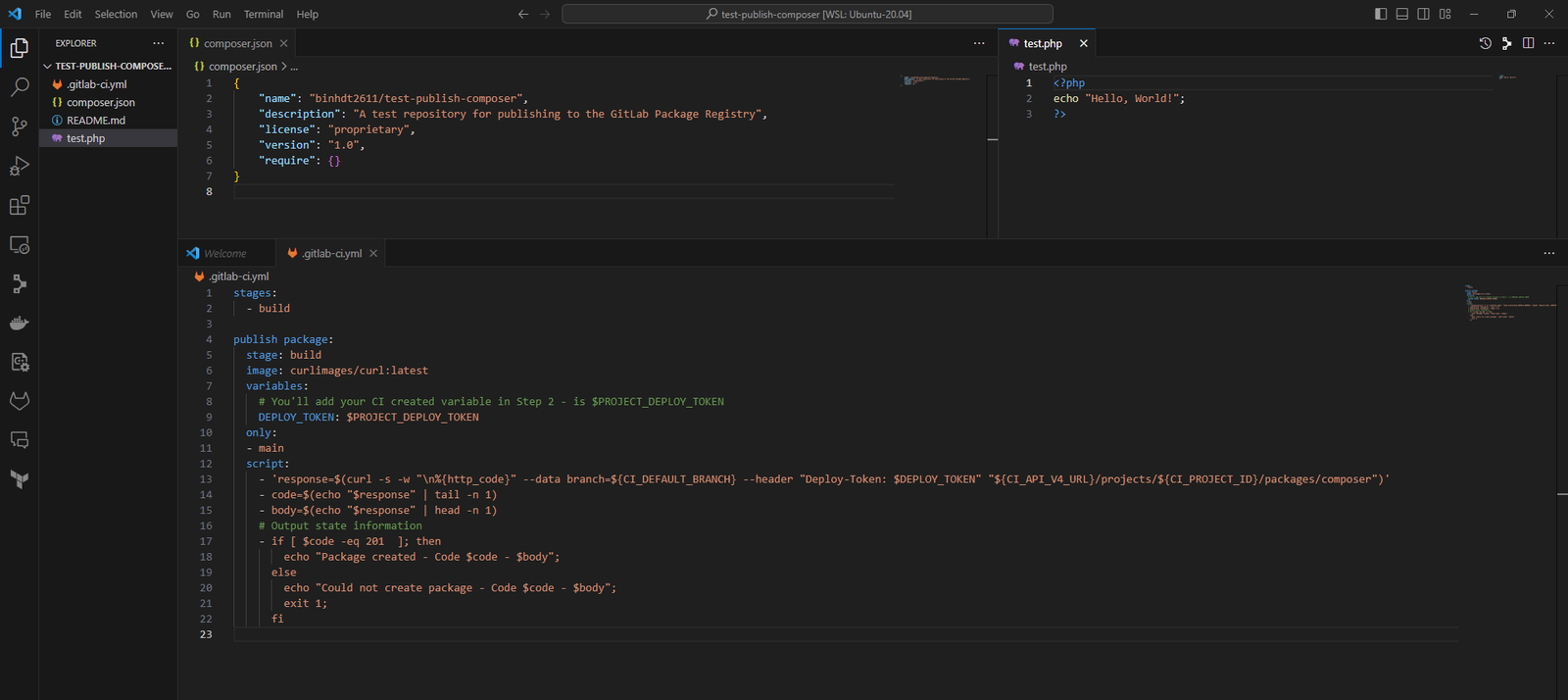
On your main branch
git add .
git commit -m "Publish Composer package"
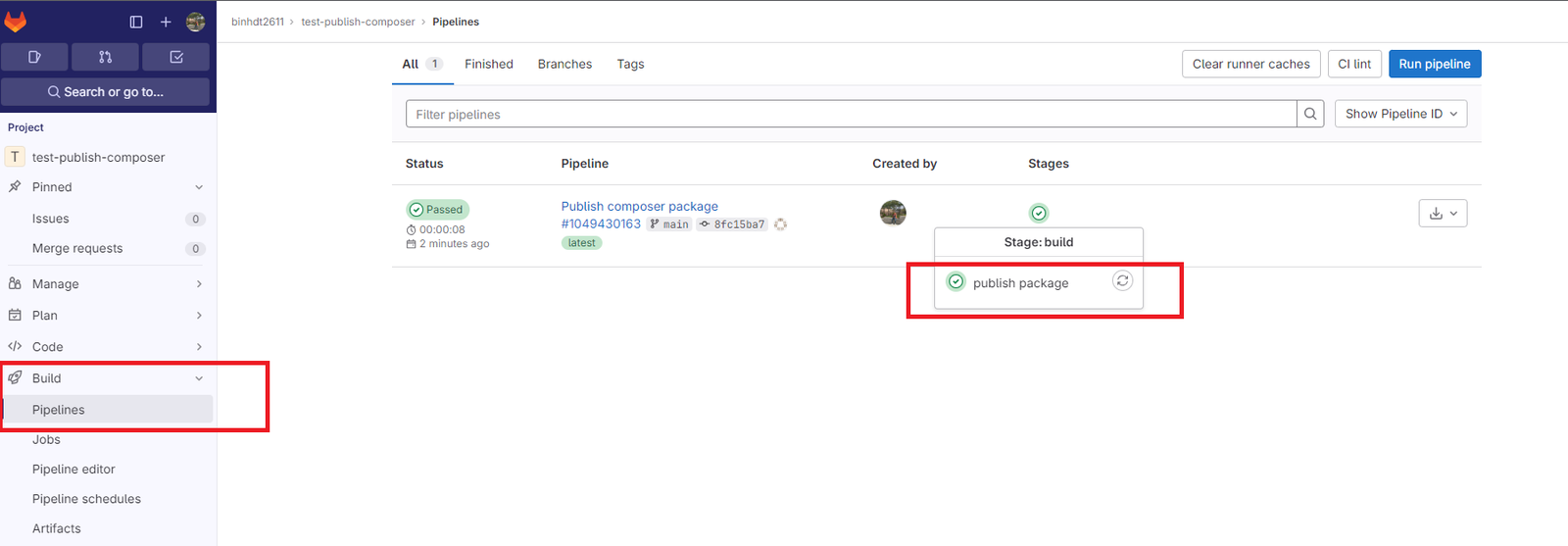
git push- After pushing the commit, open the GitLab web console. On the left navigation tree, go to Build and select Pipeline. You’ll see that your job has been created successfully. Click on the green checkmark circle under Stages, then click publish package to view the details.
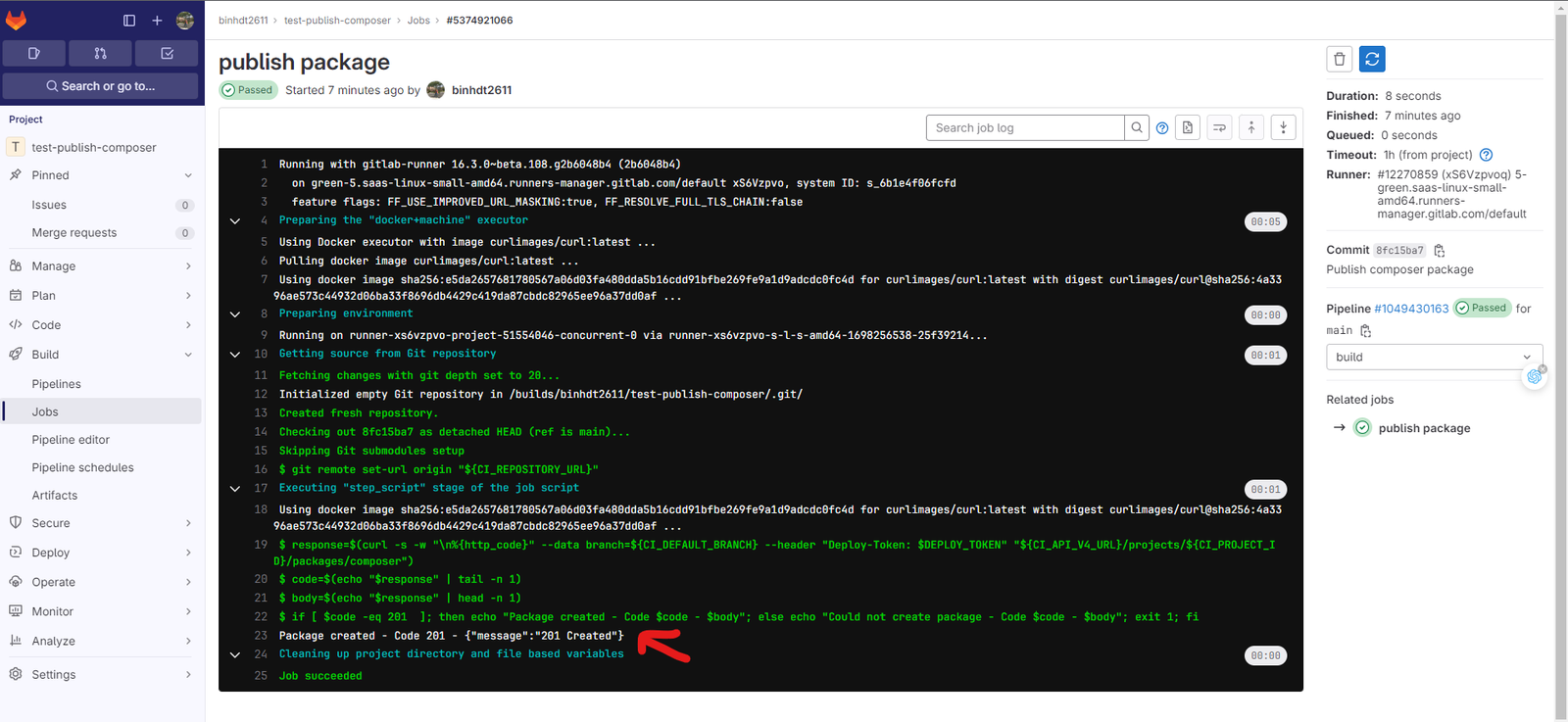
- From the job logs, we can see that a Composer package has been created
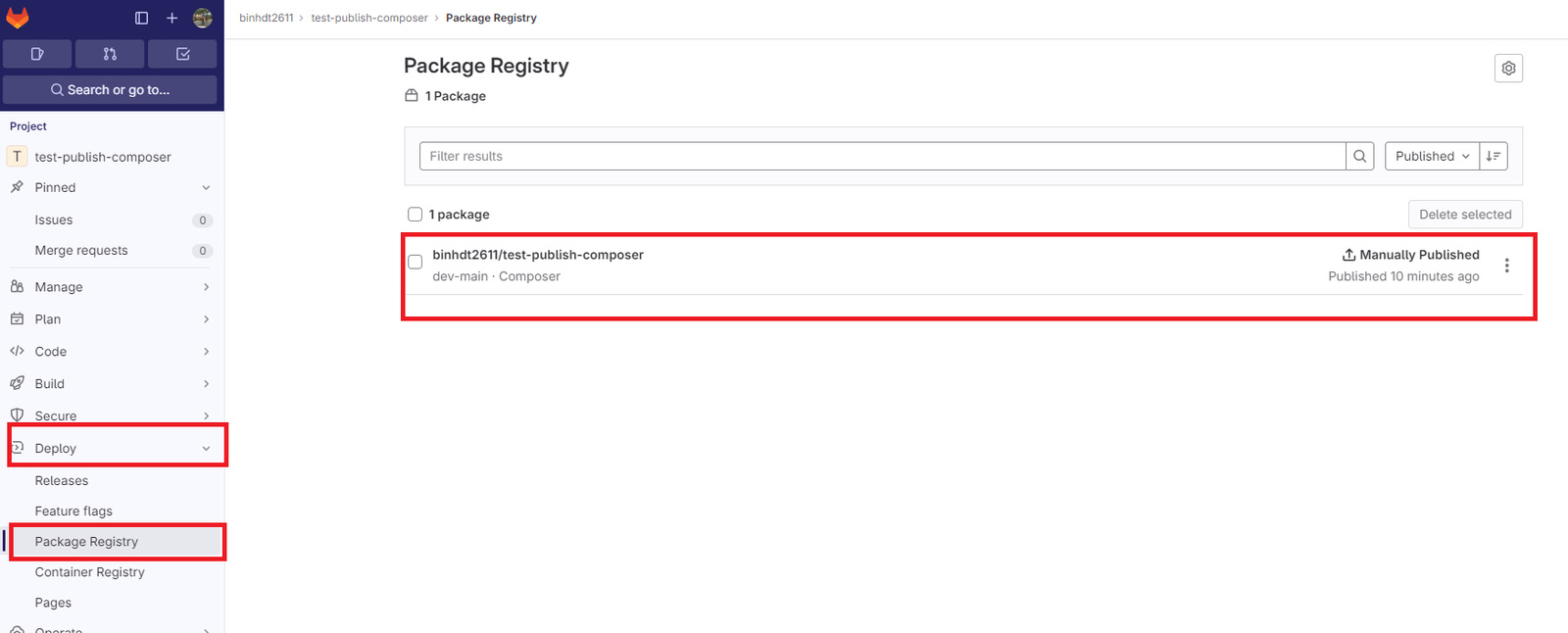
- Checking your package in the GitLab Package Registry. On the left navigation tree, go to Deploy -> select Package Registry. Now you’ll see your package available to download here.
That’s all steps we need to publish a project as a Composer package. Thanks for visiting my blog.
Share this:

Discover more from Turn DevOps Easier
Subscribe to get the latest posts sent to your email.