
 By Binh
In my Puppet Series, if you’ve been following my blog starting from the Setup Puppet 8 on Ubuntu 24.04 – Configuration Management for a scaling enterprise blog, we’ve explored the fundamentals of Puppet, specifically the Puppet Server and Puppet Agent, which are essential components of the system. Apart from that, we will delve deeper into PuppetDB, acting as a central database where it stores data generated by Puppet.
Why do we need PuppetDB?
We can always run Puppet to apply the desired configurations on agent nodes without needing PuppetDB. So why do we need PuppetDB?
I would say, if you just have a few servers (e.g. 2 or 3) and have minimal functionalities in your setup, and your servers/applications don’t need to access the nodes’ data between each other. Then, generally, we might skip implementing PuppetDB. However, PuppetDB plays a significant role in scalability, reporting, and handling complex dependencies in the Puppet Environment. Because it leverages the advanced features in Puppet, such as exported resources (this is the most common use case of PuppetDB), Bolt inventory. PuppetDb also provides API endpoints for other applications to query nodes’ facts and reports, so that we can develop our own workflow against these nodes.
You can explore more about exported resources in Puppet’s docs. Basically, it defines a desired state for a resource and makes it available for use by other nodes (by storing the data in PuppetDB). For example, we declare a nagios_host resource for all agent nodes in our system, and export this nagios_host resource so that we can, e.g. write our own script/application to collect data from all nodes and set up a specific monitoring system for each server based on their usage purpose. As a result, the common use cases for exported resources are monitoring and backups, as far as I can see. See the code below for a declaration of the exported resource:
# we apply nagios_host configuration on an agent node, and export its resource to store in PuppetDB for the use of others
@@nagios_host { $trusted['certname']:
  ensure  => present,
  alias   => $trusted['hostname'],
  address => $trusted['certname'],
  use     => 'generic-host',
}
We can just prepend @@ to the resource type of a standard resource declaration to declare exported resources.
Prerequisites
To install PuppetDB, I have a few prerequisites so that we can add Puppet Code for PuppetDB if you want to follow my guide.
- Have Puppet Server installed. The Puppet Server applies a Roles and Profiles architecture that I implemented in the previous blogs. You may at least want to read Setup Puppet 8 on Ubuntu 24.04 – Configuration Management for a Scaling Enterprise and Mastering Puppet: Implementing Roles and Profiles Effectively in Reality to set up the prerequisites. For other setup such as
r10k,hiera-eyaml, etc, you can look at other posts in Puppet Series.
| Hostname | IP address | Role |
| puppet-master.srv.local | 192.168.68.117 | Puppet Server (Master) |
Code changes in this blog can be tracked on https://gitlab.com/binhdt2611/puppet-demo/-/merge_requests/7/diffs.
Installation
In general, we have 3 common ways to install and set up PuppetDB by:
- Using the puppetlabs/puppetdb module from Puppet Forge. This is the most common and least manual step. If you’re familiar with Puppet Development, we can add Puppet code to configure and set up PuppetDB.
- Installing directly from packages, this way involves manual configuration steps for PuppetDB and PostgreSQL. See PuppetDB 8 requirements for more information.
- Installing from source code, it’s almost similar to installing from packages. The main difference is that we compile PuppetDB from source code. I wouldn’t recommend this way because it’s prone to error if you’re not familiar.
I’ll use the puppetlabs/puppetdb module in this guide for easier setup. The puppetlabs/puppetdb module is to install PostgreSQL and PuppetDB, and sets up the connection to the Puppet Server (Puppet Master in old versions).
Adding modules to facilitate PuppetDB setup.
As usual from the previous blogs, under the project root path in https://gitlab.com/binhdt2611/puppet-demo, we create a branch named feat_puppetdb, and start developing on this branch.
Next, we will need to include at least the following modules and their dependency modules in the Puppetfile file (still under the project root path).
mod 'puppetlabs-inifile', '6.2.0'
mod 'puppetlabs-firewall', '8.2.0'
mod 'puppetlabs-postgresql', '10.6.1'
mod 'puppetlabs-puppetdb', '8.1.0'
NOTE: The puppetlabs/puppetdb module has module dependencies listing above. You may have to check each module to see whether it requires any other dependencies. Because I continue developing on https://gitlab.com/binhdt2611/puppet-demo which I declared a few modules since the previous blogs. Therefore, the list modules satisfy the requirements already.
Adding Puppet code for PuppetDB setup to a central profile “profiles::puppetmaster” class
In the A Guide to Policy-Based Autosigning in Puppet, I’ve created a central profile class called profiles::puppetmaster {} in site/profiles/manifests/puppetmaster.pp file. This class is where we add any configuration that applies to the puppet-master server (Puppet Server).
The content looks like this:
# Class: profiles::puppetmaster
#
#   Set up necessary tools for puppet-master (Puppet Server) server
#
#   @param challenge_password is the secret password where Puppet Server uses to validate whether requests from agent nodes is valid
#
class profiles::puppetmaster (
  String $challenge_password,
) {
  # Set up "check_csr.sh" from a template to /usr/local/bin
  file { '/usr/local/bin/check_csr.sh':
    ensure  => 'file',
    content => template('profiles/puppetmaster/check_csr.sh.erb'),
    owner   => 'root',
    group   => 'root',
    mode    => '0755',
  }
}
Now, we need to add Puppet Code parts to install PostgreSQL 14, PuppetDB 8, and set up the connection for Puppet Server to connect to PuppetDB. Updating the file with the content below
# Class: profiles::puppetmaster
#
#   Set up necessary tools for puppet-master (Puppet Server) server
#
#   @param challenge_password is the secret password where Puppet Server uses to validate whether requests from agent nodes is valid
#   @param puppetdb_database_password is the secret password for 'puppetdb' user created on PostgreSQL 14
#
class profiles::puppetmaster (
  String $challenge_password,
  String $puppetdb_database_password,
) {
  # Set up "check_csr.sh" from a template to /usr/local/bin
  file { '/usr/local/bin/check_csr.sh':
    ensure  => 'file',
    content => template('profiles/puppetmaster/check_csr.sh.erb'),
    owner   => 'root',
    group   => 'root',
    mode    => '0755',
  }

  # I'm running Puppet Server version 8.8.1-1+ubuntu24.04
  # According to https://help.puppet.com/core/current/Content/PuppetCore/platform_lifecycle.htm
  # The compatible PuppetDB version should be 8.9.1
  class { 'puppetdb::globals':
    version => '8.9.1-1+ubuntu24.04',
  }

  # Configure puppetdb and its underlying database
  # NOTE: Because I'm using Puppet Server/agent packages under Openvox Repo
  # They are openvox-server/openvox-agent packages.
  # Therefore, the package name of PuppetDB should become 'openvoxdb' instead of 'puppetdb'. It's just a change of package name only
  # Other commands in regard to PuppetDB remain the same under openvoxdb package
  class { 'puppetdb':
    puppetdb_package  => 'openvoxdb',
    database_password => $puppetdb_database_password,   # Change the default password 'puppetdb' to my own
    java_args         => {
      '-Xmx' => '512m',
      '-Xms' => '256m',
    },
  }

  # Configure the Puppet Server to use puppetdb
  # We also need to change terminus_package name to the corresponding openvox package to avoid module error
  class { 'puppetdb::master::config':
    terminus_package  => 'openvoxdb-termini',
  }
}
A short explanation of classes from puppetlabs/puppetdb module:
class { 'puppetdb::globals': ... }: set the desired version foropenvoxdbandopenvoxdb-terminipackagesclass { 'puppetdb': ... }: installs PostgreSQL (default to version 14) and PuppetDB. My puppet-master server has limited memory, so I have to setjava_argsparameter to limit the memory usage of PuppetDB.class { 'puppetdb::master::config': ... }: sets up necessary configurations for Puppet Server to connect PuppetDB. This class will installopenvoxdb-termini, a package provides extra Ruby plugins so that Puppet Server can communicate with PuppetDB
If you need to adjust more settings on either PostgreSQL or PuppetDB, you might need to look at puppetlabs/puppetdb module’s documentations to get the parameters that suit your needs.
NOTE: As I use openvox-server/openvox-agent packages under OpenVox repository, the corresponding packages for puppetdb should be:
puppetdb->openvoxdbpuppetdb-termini->openvoxdb-termini
If you install puppetserver/puppet-agent packages, you don’t have to specify options puppetdb_package and terminus_package above. The module has the correct name by default already.
(Optional) Create an encrypted password for PostgreSQL user
In the profiles::puppetmaster {} above, you have seen the parameter puppetdb_database_password, which I set a custom password for ‘puppetdb’ user in PostgreSQL.
By default, when you add class { 'puppetdb': } without passing any other options, it installs PostgreSQL, and create a list of settings as follow for authentications:
database_username->puppetdbdatabase_password->puppetdbdatabase_host->localhostdatabase_port->5432database_name->puppetdb
I want to change the default database_password here. Since, I’ve enabled hiera-eyaml in Managing Sensitive Data in Puppet Using Hiera-eyaml, I generate an expected password, and encrypt it at local by running:
$ eyaml encrypt -p
Enter password: *************

Output:

string: ENC[PKCS7,MIIBeQYJKoZIhvcNAQcDoIIBajCCAWYCAQAxggEhMIIBHQIBADAFMAACAQEwDQYJKoZIhvc.........pzxrwEy2gBDwR05ZdpXde71v0ZbCvCVY]

OR

block: >
  ENC[PKCS7,MIIBeQYJKoZIhvcNAQcDoIIBajCCAWYCAQAxggEhMIIBHQIBAD
  AFMAACAQEwDQYJKoZIhvcNAQEBBQAEggEAKisCjUCZ8ZNXMhX8ZfLere+X/q
  ...
  armvhchQiNtmdU5jA8BgkqhkiG9w0BBwEwHQYJYIZIAWUDBAEqBBDY4il5ha
  f6BWFlpzxrwEy2gBDwR05ZdpXde71v0ZbCvCVY]
Copy the encrypted data in either “string” or “block” above. In data/secrets/puppet-master.srv.local.eyaml file, where it stores encrypted data for puppet-master server to access only. I’ve added the encrypted data as follows:
# I've added the content of "block:" from output here.
profiles::puppetmaster::puppetdb_database_password: >
  ENC[PKCS7,MIIBeQYJKoZIhvcNAQcDoIIBajCCAWYCAQAxggEhMIIBHQIBAD
  AFMAACAQEwDQYJKoZIhvcNAQEBBQAEggEAKisCjUCZ8ZNXMhX8ZfLere+X/q
  ...
  armvhchQiNtmdU5jA8BgkqhkiG9w0BBwEwHQYJYIZIAWUDBAEqBBDY4il5ha
  f6BWFlpzxrwEy2gBDwR05ZdpXde71v0ZbCvCVY]
Whenever the profiles::puppetmaster {} class runs, it can decrypt the encrypted data in profiles::puppetmaster::puppetdb_database_password to extract the real value.
Submit and Testing
Commit all your changes and push them to remote branch feat_puppetdb. To apply new configurations on the feat_puppetdb, we need to deploy this branch into the corresponding Puppet environment through r10k. I’ve configured r10k in Efficient Puppet Code Deployment using r10k blog, it automatically deploys code from https://gitlab.com/binhdt2611/puppet-demo to the Puppet Environment for me. You may want to check out that blog to see what it looks like.
On puppet-master server, if we want to manually deploy, we run:
sudo /opt/puppetlabs/puppet/bin/r10k deploy environment -m -v
Here is the result after r10k pulls the code into the Puppet environment’s folder.

To start applying code on the branch feat_puppetdb, we run:
sudo /opt/puppetlabs/bin/puppet agent -t --environment=feat_puppetdb
Wait for Puppet to complete the setup.
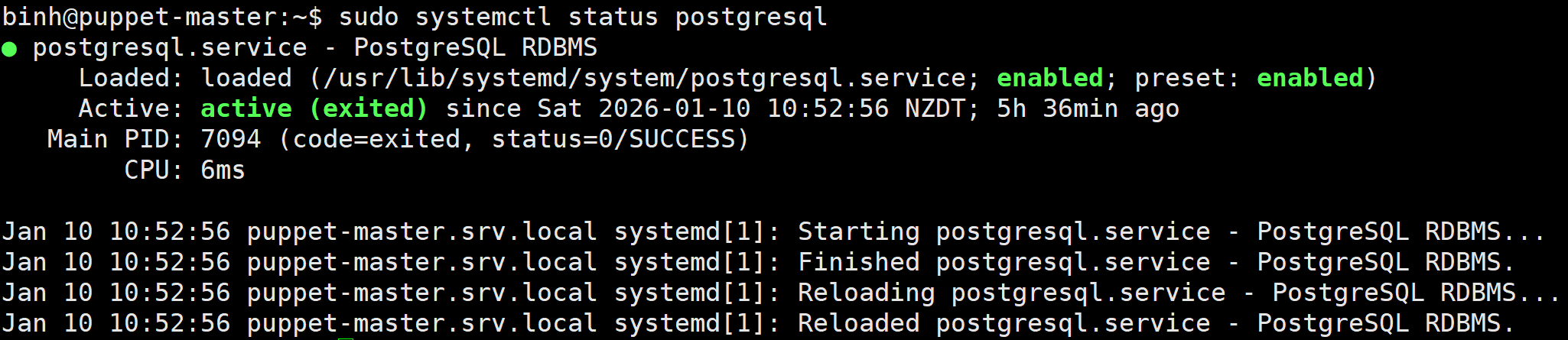
After it completes, we check PostgreSQL service is up and running by:
sudo systemctl status postgresql
Output:
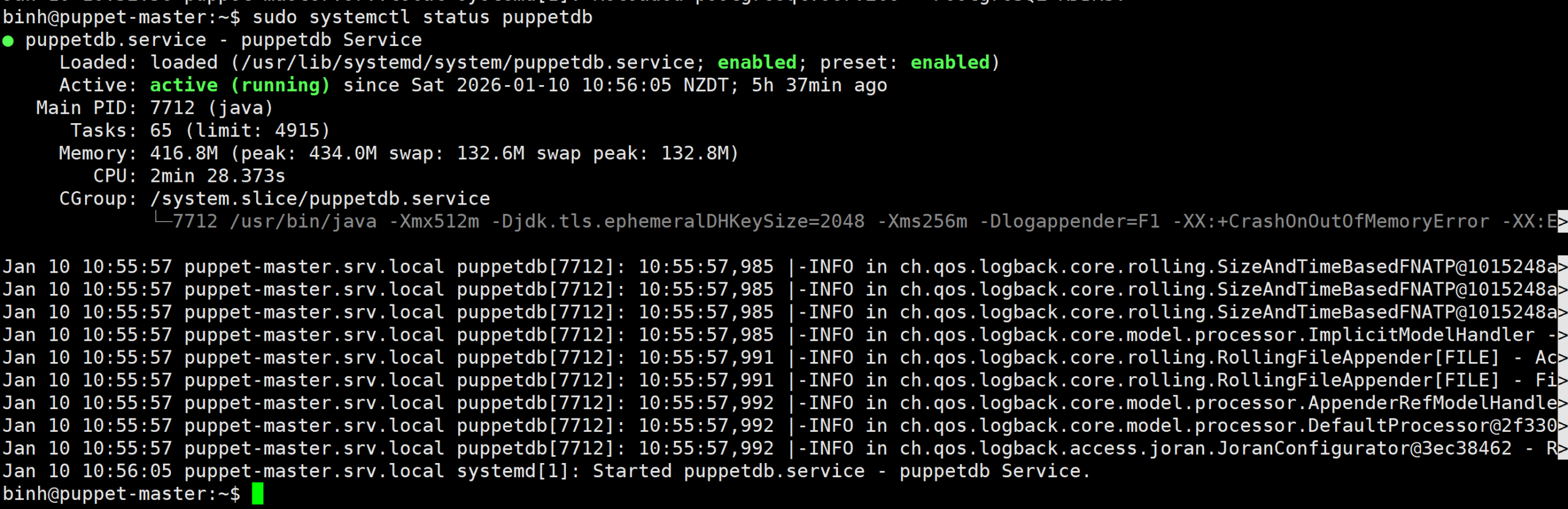
Check PuppetDB service is up and running:
sudo systemctl status puppetdb
Output:
Testing PuppetDB’s API to see if it’s working, we run
curl -s http://localhost:8080/pdb/query/v4/nodes | jq
Output:
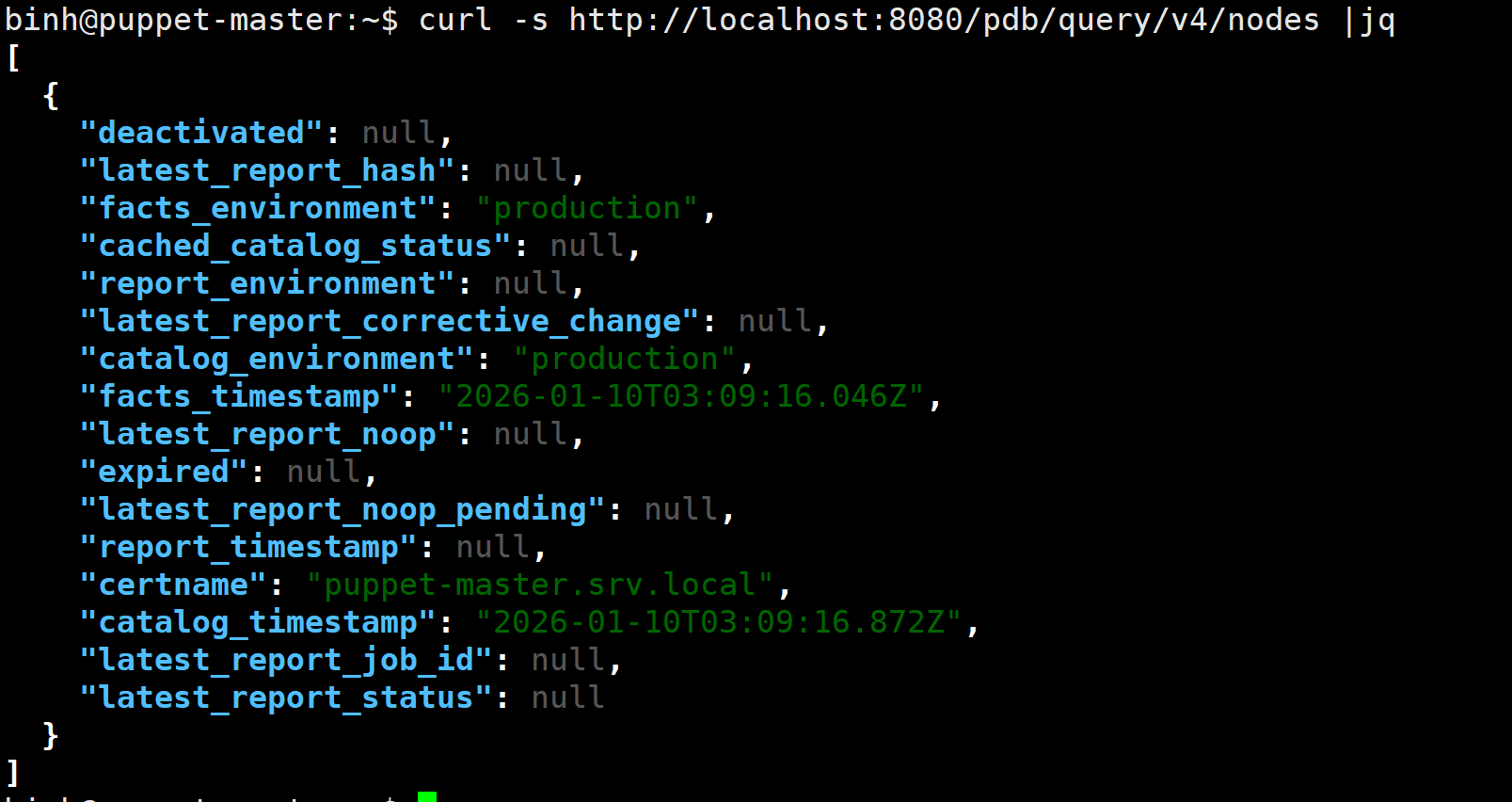
Ok. Congratulations! Now you have Puppet DB up and running perfectly. Remember to merge the branch feat_puppetdb into production so that it persists permanently without unexpectedly losing the config.
Noted that we can interact with Puppet DB either through port 8080 (without SSL) or port 8081 (with SSL). These are configured in /etc/puppetlabs/puppetdb/conf.d/jetty.ini. Other configurations are stored in /etc/puppetlabs/puppetdb/conf.d/ if you want to check.
Hope you find it useful. Thanks for reading.
Share this:

Discover more from Turn DevOps Easier
Subscribe to get the latest posts sent to your email.